
Sunday, January 15, 2012

Tuesday, December 20, 2011
Outlook Web App didn't initialize - Exchange 2010
Desktops, Servers, and Networks, oh MY!
OWA version: 14.1.355.2

Exchange 2010 Outlook Web App loads the login form page for users of OWA but after login an error page is displayed that displays an error indicating that Outlook Web App cannot initialize. This is an authentication issue.
In the case of the blogged server situation. The SSL cert was purchased form digicert.com and applied successfully. The problem was the settings in IIS and in Exchange management console for client access of Outlook Web Access (now called outlook web app) were not "matching".
Server configuration > client access > OWA properties > Authentication Tab
Select Use Forms Based, Username only. Enter your logon domain (your local internal Active Directory domain).
Next, in IIS7, go to the following spot in the tree under Default Website and set the authentication like the following image shows.

That's all I had to do on my Exchange 2010 and Exchange 2016 server to get past the OWA error message after login in of:
This and many other Outlook and even Microsoft Exchange related issues can be resolved remotely. With software for online desktop support, you could access desktops and servers remotely to work on issues with email clients or mail delivery from servers.
OWA version: 14.1.355.2
Exchange 2010 Outlook Web App loads the login form page for users of OWA but after login an error page is displayed that displays an error indicating that Outlook Web App cannot initialize. This is an authentication issue.
In the case of the blogged server situation. The SSL cert was purchased form digicert.com and applied successfully. The problem was the settings in IIS and in Exchange management console for client access of Outlook Web Access (now called outlook web app) were not "matching".
Server configuration > client access > OWA properties > Authentication Tab
Select Use Forms Based, Username only. Enter your logon domain (your local internal Active Directory domain).
Next, in IIS7, go to the following spot in the tree under Default Website and set the authentication like the following image shows.
That's all I had to do on my Exchange 2010 and Exchange 2016 server to get past the OWA error message after login in of:
Outlook Web App didn't initialize.
RDP manager software can help with application issues.
RDP manager software plays a crucial role in resolving Outlook application issues by providing professionals with a centralized platform to manage and troubleshoot various aspects of the application. Firstly, this software allows IT administrators to remotely connect to desktops or servers that are experiencing Outlook problems, enabling them to quickly identify and resolve any underlying issues. Additionally, RDP manager software enhances efficiency by providing functionalities like session management, which allows multiple users to simultaneously access and work on the same session without interrupting each other's progress. OWA or Outlook is only one example of many where RDP connection management software enables a centralized platform for initiating a support experience for the end-user. Furthermore, it offers features such as file sharing and collaboration tools that facilitate seamless communication between team members, enabling them to address Outlook problems collectively. Overall, the RDP manager software streamlines troubleshooting processes by offering a comprehensive set of tools and capabilities that ensure efficient resolution of application issues in a professional setting. Similar to RDCMan, the software facilitates the creation of a list of re-usable RDP connections. RDCMan requires installation and to use on multiple computers or laptops, the list has to be exported and imported.
Online RDP Manager
Online RDP manager software, the managed and centralized list of RDP connections is available from any computer or devices independent of operating system. RDS servers enable a pseudo centralized RDP connection and desktop availability. They are commonly used to give users access to a virtual application or desktop. Software to centralize RDP connections, such as software from 4RemoteSupport.com, is designed for a single administrator or support teams presents a list of managed RDP connections to access servers or desktops that are RDP enabled. Since 4RemoteSupport's online RDP manager doesn't require installation but instead is an online RDP manager, the software user interface permits one or more administrators to modify the list of RDP connections and have access at the same time. The list of RDP connections is available to all team members. Unlike RDCMan, the list of RDP connections doesn't have to be exported to be shared. All administrators can access the shared list of online RDP connections at the same time from any internet connected device with a browser.
Sunday, November 20, 2011
Citrix Session Printers Registry Key Location
Session printers created via policy
Session printers created via policy in Citrix XenApp are considered local printers. As such they are in the registry key that is common for local printer definitions. That registry key location on Windows 2008 R2 is :
HKEY_LOCAL_MACHINE\SYSTEM\CurrentControlSet\Control\Print\Printers
Problem with session printers such as additional printers appearing in the user's list of available printers while in a session, most often is a result of driver corruption. Once the corrupt driver has been fixed or removed, you may have printers still showing up in user sessions that do not belong.
One of the things you can check is the key in the registry where the session printers are defined.
For stuck printers, as option to get rid of them is often to delete the user's profile but that's not always the best option so removing the session printers defined for that user can be done through the registry. Be cautious when removing but when there are no users logged into the Cirix Xenapp server, there should be no session printers defined.
Similar to Citrix is RDS using RDP protocol. Similar issues are encountered when using RDP for user access to desktops or Administrator access to servers or desktops. Managing RDP connections can be time consuming and having a centralized RDP connections make administration and management easier. RDS gateway such as this one similarly to Citrix permits multiuser access.
Monday, January 04, 2010
God Mode in Windows 7
Windows 7 interface (and desktop) is rather clean and minimalist. Control panel as XP, 2000, and other previous OS version before offers a place to access and change settings. There's a lot of clicking into the different applets in control panel to get to the setting you may need at the time. It won’t allow you to see and easily use all those nested settings included in the main options.
Did you know that you can become a God? Well, at least on Windows 7!
One of the less known options on Windows 7 is the God Mode feature. Basically, it lets you have every setting and option right in front of you, ready to be used without having to browse among different settings before getting what you are looking for.
Here is how to enable it:
Right click on any bank space on your desktop.
Click New from the menu and create a New Folder.
Rename the folder as follow: GodMode.{ED7BA470-8E54-465E-825C-99712043E01C}
DO NOT use this trick on Vista and Windows 7 64X. It will cause your Windows to crash! (read comments below)
This simple command will create a special shortcut to the God Mode option letting you access all Windows 7 functions via a handy GUI!
EDIT: GodMode also works on Windows Vista!
[credit: stadt-bremerhaven.de]
Did you know that you can become a God? Well, at least on Windows 7!
One of the less known options on Windows 7 is the God Mode feature. Basically, it lets you have every setting and option right in front of you, ready to be used without having to browse among different settings before getting what you are looking for.
Here is how to enable it:
Right click on any bank space on your desktop.
Click New from the menu and create a New Folder.
Rename the folder as follow: GodMode.{ED7BA470-8E54-465E-825C-99712043E01C}
DO NOT use this trick on Vista and Windows 7 64X. It will cause your Windows to crash! (read comments below)
This simple command will create a special shortcut to the God Mode option letting you access all Windows 7 functions via a handy GUI!
EDIT: GodMode also works on Windows Vista!
[credit: stadt-bremerhaven.de]
Monday, June 08, 2009
List Users With Forwarding Enabled Exchange 2003
List Users With Forwarding Enabled Exchange 2003
To find all users in AD that have forwarding turned and enabled for their account and mailbox create a new saved query in AD Users and Computers and use the following LDAP query.
(&(mailNickname=*)(altRecipient=*))

This is very useful obviously if there a many accounts and you need to find all users that have had forwarding turned on for their account. The alternative to this is to select the properties of each user account one at a time and look at the delivery options configuration.
To find all users in AD that have forwarding turned and enabled for their account and mailbox create a new saved query in AD Users and Computers and use the following LDAP query.
(&(mailNickname=*)(altRecipient=*))
This is very useful obviously if there a many accounts and you need to find all users that have had forwarding turned on for their account. The alternative to this is to select the properties of each user account one at a time and look at the delivery options configuration.
Wednesday, May 27, 2009
A Browser Active Sync Test URL

Technical issues with IIS, OWA, other web based email services and even email clients such as Outlook can be resolved remotely. Software for Online Computer support can help resolve problems remotely. More often than not, user experience is increased by enabling your support team to have on-demand remote access to desktop computers and server. The more methods there are to test, the more likely the problem you're working on can be resolved with certainty and assuredness.
The URL could even be http if SSL is not configured on the server to be required.
Testing active sync using a browser returns as an error in the browser window of Error 501/505 - Not implemented or not supported.
For Exchange 2007 and Outlook Web Access 2007, the error 501 and 505 seen on the page displayed is actually normal and should be the response the browser receives from the web server. After all, it's not a mobile phone it's a browser.
Although the error massage has changes slightly in windows server 2008 and windows server 2008 R2, it is very similar. The URL for testing ActiveSync is still in new versions of Exchange. Microsoft Exchange 2007 and Microsoft Exchange 2010 still use the same service point with the IIS web server structure and virtual directories.
To the remote user and to the smartphone it's still the same. underneath, server side, there have been many changes to Internet Information Services. In Windows server 2008 and 2008 R2, IIS has undergone many functional and interface changes for server administrators. When trying to setup a smartphone or mobile device, iPad or iPhone for ActiveSync to get email from an Exchange server, the URL is still the same. The URL that can be used to test active sync access and connectivity is the same and can be tested bot internally and externally. The difference being of course what name is entered into the browser and support for internal and external access is the same as well.
Since the writing of the above article Exchange and email hosting has changed dramatically. There are fewer installations of Exchange servers on-premises, and the use of hosted email or online exchange has increased tremendously. I'm personally not a huge proponent of hosted everything. Once hosted, the hosting company essentially has a key control of your destiny and future. I do understand the need, convenient use, and the economics of hosting. The use of hosting services is invaluable. The are still those who have their own servers in their server rooms and data closets. In addition, there are companies that have their servers hosted in a cloud whereby the server is still theirs essentially, it's not just a service but a windows server that's accessible as if it was present in their own server room. A convenient method for accessing those servers has still remained to be RDP (remote desktop protocol).
Managing RDP Connections
RDP access is used extensively by network and server administrators all across the world. Small and large IT departments benefit from using RDP. Initially part of Microsoft's NT Terminal server which was a separate independent edition of Microsoft Windows server. RDP was then implemented as an add-on service feature of windows server. The RDP was added to desktops such as the pro editions of Windows, RDP is widely used to access servers in their own closest or hosted in a cloud. RDP provides benefits that on the surface assist in accessing and managing servers remotely. RDP protocol helps with troubleshooting issues with file servers, email servers, or other enterprise servers such as domain controller servers for Active Directory and more. RDP clients have been developed for macOS and Linux systems. There are even RDP protocol clients for android and tablets. Managing RDP connections can be achieved by using installable desktop software or a better method for accessing RDP connections is online using a browser. Managing RDP connection is beneficial to all administrators and also could be useful for standard general users of desktop. Since the RDP protocol has been implemented into the pro editions of the windows desktop operating system, RDP connectivity has bee made available for general purpose productivity and application use by users. Managing RDP connection can be centralized with the proper software tool. An RDP manager can provide access in a centralized manor to RDP connection made available to administrator and user. https://4RemoteSupport.com software for managing RDP connections centrally is 100% online and compatible with macOS, Linux and MS Windows and virtually any device can manager RDP connections.
RDP Connection Manager
Microsoft has since initial inception of RDP and terminal server RDS gateway. remote desktop Gateway is a method for network and server administrators to provide a centralized location for users to access to connect to RDS (Remote desktop Service) servers or their own desktops. Independant of RDS gateway are RDP connection manager software tools that enable administrators and server admins to give access for themselves and for users An RDP connection manager software centralizes connections. RDP connection manager software that's completely online further simplifies access to RDP connections for administrators and general users by offering a single point of connectivity and predefined connections 4RemoteSupport has a RDP Connection manager software tool that enable A centralized RDP manager, that also simplifies managing and connecting to desktops and services through a simple UI. Administrators can add new connections in seconds and are available to other administrators or users immediately. RDP connection manager software tool by 4RemoteSupport creates RDP files "on the fly". When a connection attempt is made using one of the saved RDP connections, a file is created and downloaded through the browser's standard file download interface. There's no need to save RDP files on servers, or on web sites. there's no way for a hacker to get all connections because they are automatically crated and downloaded each time the RDP connections are accessed by an administrator or user. RDP connection manager software that saves files requires exporting. managing RDP connections using an RDP connection manager that's online instead of installed on a desktop provides faster easier access to RDP connections with a centralized easy t use interface that benefits administrators and general users of RDP. https://4RemoteSupport.com RDP Connection manager is a software tool that doesn't require installation for centralized RDP connection management with a simple browser UI securely.
Saturday, December 13, 2008
Microsoft HMC 4.5 Deployment Walkthrough - Does it Work

Microsoft's HMC 4.5 Deployment Walkthrough is an excellent document and I could say that it does work.
I found some minor little errors in the doc but none that were significant enough for a person with a good level of experience with the various Microsoft products to be able to recognize and get past.
There are doubters of course as to whether or not the deployment walkthrough actually will guide someone through installing their hosted Exchange 2007 environment. I did not build hosted communications or hosted sharepoint, only hosted Exchange.
My deployment did not match the deployment walkthrough exactly. And this fact is a testament to how well Microsoft has put together this iteration and release of the hosted messaging and collaboration. I build the infrastructure with the following servers, and believe me more will be added, but at this moment after just completing the install and applying my real SAN cert (not the SSL certs I generated on my own internal root certificate CA server).
Particularly in the domain controller department, I sped through the deployment by using only one domain controller. I'll be adding another this week and preparing for our first customers. I have 9 servers in total with a build out expected in the near future to include more servers to expand and increase performance and redundancy. Very soon and firstly, within a day or so I will have reached 10 servers for this HMC 4.5 deployment by simply adding another domain controller which is an absolute must and critical that it's deployed as soon as possible. Running with one DC is a recipe for a disaster (as we all know). When that server is added to the environment, the number of servers will be a consolidated 10 (ten) servers for this hosted Exchange HMC 4.5 solution deployment.
This is a consolidated hosted messaging and collaboration HMC 4.5. It was an accident that I created it as such and did start my work building the HMC 4.5 deployment from the consolidated HMC 4.0 deployment guide (an unofficial guide). I have for servers the following (names and roles to be added later):
There have been some grunting and groaning about Microsoft's deployment walkthrough document but I have to say it worked. The deployment walkthrough and in a consolodated design worked. This is my first install of the messaging and collaboration solution of any version. My HMC 4.5 deployment works with a minimum of servers (that will be scaled out to accommodate real production use). Overall, except for some minor issues the document does what's expected; provide a guide and example of a hosted solution installation and deployment. They cannot in a single document explain SQL, Exchange inner workings, or even the provisioning system in detail. This also make handy use of weeding out those who should not yet be deploying. A very experienced person with Microsoft products will find many of the steps easy to accomplish but a not so seasoned person will find the document and steps to accomplish the tasks not so helpful because every step of let's say, making changes or additions in active directory, are not explained or spelled out.
I saw that as I was working through the doc. I could see points that would make people give up because they can take a left turn during the walkthrough deployment and it will cost them dearly. I had one of those nearly deathly turns with the deployment of SQL report server. This is an area that I am familiar with but don't work with this particular product everyday and it showed as I worked through the deployment steps I had to verify to myself several times before taking action that it was the right thing to execute or do. My report server component of SQL installed without the databases it needed. Who knows why? Before this deployment I had another going that I scrapped for other reasons but the report server databases installed. In this round, they did not. I kept the abandoned deployment and used the datebase from that installation by exporting it and importing it. Although I believed I did the same thing as the first install and I was reading and working from the same Microsoft walkthrough deployment guide document, the install was different. I managed to get myself through the problem but several days were certainly lost.
Perhaps in another post I can mention my experience with the SAN (Subject Alternate Name) Unified Communications cert.
This deployment is not for everyone and everyone should not be deploying it. The document for the walkthrough deployment from Microsoft is excellent. Sure, there could have been more detail but the document is not meant to provide every step along the way. Microsoft has to assume and expect there will be some level of expertise and knowledge induced into the installation by the installer, Microsoft can't and should not put it into one single document. I wish I had noted the minor errors I found in the doc so I could send them to Microsoft for document correction. Again, without enough or the right amount of knowledge, those little errors could be devastating. For the smokey room conspirator theory folks who may be reading this post, who think Microsoft is evil, here's something to think about; perhaps Microsoft put those little errors in the document by design, ...hmmm... , purposefully weed out companies from the hosted game ... a selective or survival of the fittest process.
Microsoft did a great job with the HMC 4.5 document. Using it I was able to deploy a hosted Exchange 2007 server environment. I absolutely do not claim to be an expert in the multi-tenant Exchange environment but I surely have more than a foot in the door of learning and experiencing much more about it.
I just recently finished testing Outlook Anywhere functionality with the 4.5 HMC Exchange environment using a fictitious organization but a real domain using real DNS servers. The functionality works pretty darn good. Once again, Microsoft did an excellent job with the document and deployment guide walkthrough. The clients find the autodiscover redirect site then get sent to the autodiscover site within the hosted solution. Once there, they get their configuration data, logon, and up come the mailbox. It's fantastic the way Microsoft has put this together.
If during the testing phase of the deployment you have issued certificates to the autodiscover web site and internally to your Exchange servers using a root CA authority you built and is not a public root CA. A tip I could give to people who might be at this part of their deployment walkthrough and testing their Outlook Anywhere capabilities is to be sure to import the root CA certificate into the trusted root store for the user at the remote computer looking to connect with Outlook Anywhere. The symptoms are that Outlook finds the autodiscover web site, the user logs on, all seems well but the mailbox for the user does not load. A message similar to the following. "the profile is not configured" or " be sure you can connect to your exchange mailbox" .
The deployment guide actually states that Outlook Anywhere will not work without certs installed and applied to the web sites involved, and this I proved but a temp work around that will only be good for testing is to import the root certificate of the certificate authority server into the users root certificate store. It does not have to be the computer certificate store. This will allow the mail box to load into Outlook for the remote test user but until the real certificate is used (a public SAN UC SSL certificate), the user will be constantly prompted for a password. So Microsoft is right, without certificates the solution will not work for a real deployment of Hosted Exchange HMC 4.5.
Link to this site and/or post please if you've found it at all useful. Use the following URLs, thank you.
http://remotesupportpc.blogspot.com/
http://remotesupportpc.blogspot.com/2008/12/microsoft-hmc-45-deployment-walkthrough.html
Thursday, August 07, 2008
You do not have permission to send to this recipient.
You do not have permission to send to this recipient. Relay access denied


Then Click the Authentication button.
Then click the Users button.

I had this message come up in NDR reports for every account that was trying to send email out of a local domain to an Internet email recipient (basically everyone not in your company). There are indeed many sites that present a reason and solution for this but not many at all present the obvious that may have occurred on the Exchange server that's causing this problem.
If there are many hands in the pot at an office you support and suddenly you have an Microsoft Exchange server that's acting up and now on can send email and the message is similar to the following:
You do not have permission to send to this recipient. For assistance, contact your system administrator. : Relay access denied
The relay access is denied is the key to solving this email sending problem with Exchange. This doesn't mean that the server is blacklisted or is an open relay or somehow has been compromised and this message is in fact coming from your email server. the email never makes out of the Exchange box itself. You could waste time in logs trying to determine why it's bouncing but the simple solution is that the domain users have been denied, or stated differently, have been prevented from sending email.
The solution for this is not as complicated although there could be some other problems that led someone to tamper with these settings in the first place and maybe set them improperly. In Exchange 2003, if your getting "You do not have permission to send to this recipient" "Relay access denied", check that your users have permission to send. This setting can be found in Exchange System Manager under Default SMTP virtual server. Right click the virtual server and choose properties. The click the Access tab at the top.
Then Click the Authentication button.
Then click the Users button.
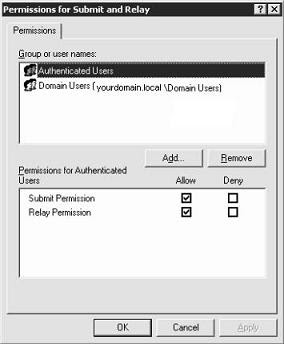 Make sure you enable Relay Permission for your users. In the case where I was getting these NDRs, the Authenticated users group was displayed with the Relay Permission enabled but that wasn't enough. I added the Domain Users group and enabled relay for the group. Save your changes and give it a try.

Subscribe to:
Posts (Atom)